How to Install/Deploy n8n Locally via Docker Desktop
What is n8n?
n8n is an open-source workflow automation platform that allows users to create, manage, and execute various automated workflows through a visual interface. As a powerful “no-code/low-code” tool, n8n’s core advantages include:
- Node-based Programming: Build workflows by dragging and connecting different functional nodes without writing extensive code.
- Extensive Integration: Supports integration with 200+ commonly used applications and services, such as Airtable, Google Sheets, Slack, GitHub, etc.
- Self-hosted Deployment: Unlike many similar tools, n8n can be fully self-hosted, ensuring data privacy and security.
- Extensibility: Supports custom node development, allowing integration with virtually any system or service.
- Fair-code Model: Uses a special open-source license that ensures code openness while supporting the project’s sustainable development.
Deploying n8n with Docker Locally
Before diving into the operational steps, let’s first understand why we choose to deploy n8n with Docker:
- Environment Isolation: Docker containers provide an isolated runtime environment, avoiding conflicts with host system dependencies.
- Simplified Deployment: No need to manually install Node.js, databases, and other dependencies; a single command can launch a complete environment.
- Version Management: Facilitates precise control and upgrade management of n8n versions.
- Cross-platform Consistency: Whether on Windows, macOS, or Linux, Docker ensures a consistent runtime experience.
- Suitable for Development and Testing: Local deployment facilitates rapid iteration and workflow testing for developers.
- Limitations: n8n cannot callback to third-party services on the public internet or provide Webhooks to trigger third-party services.
1. Install Docker Desktop
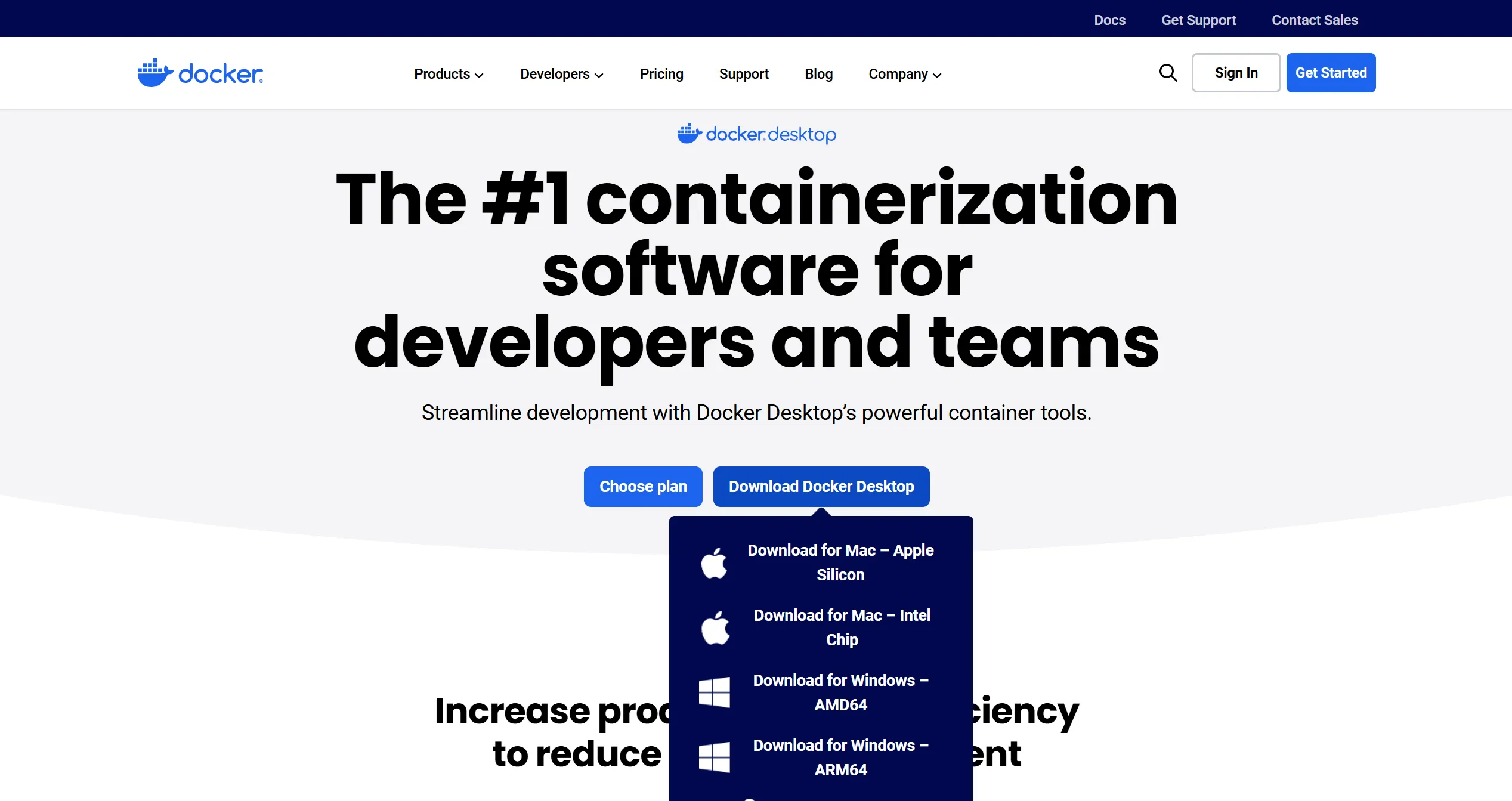
First, go to the Docker Desktop official website to download the software version corresponding to your computer system, then proceed with installation
2. Pull n8n Image in Docker Desktop
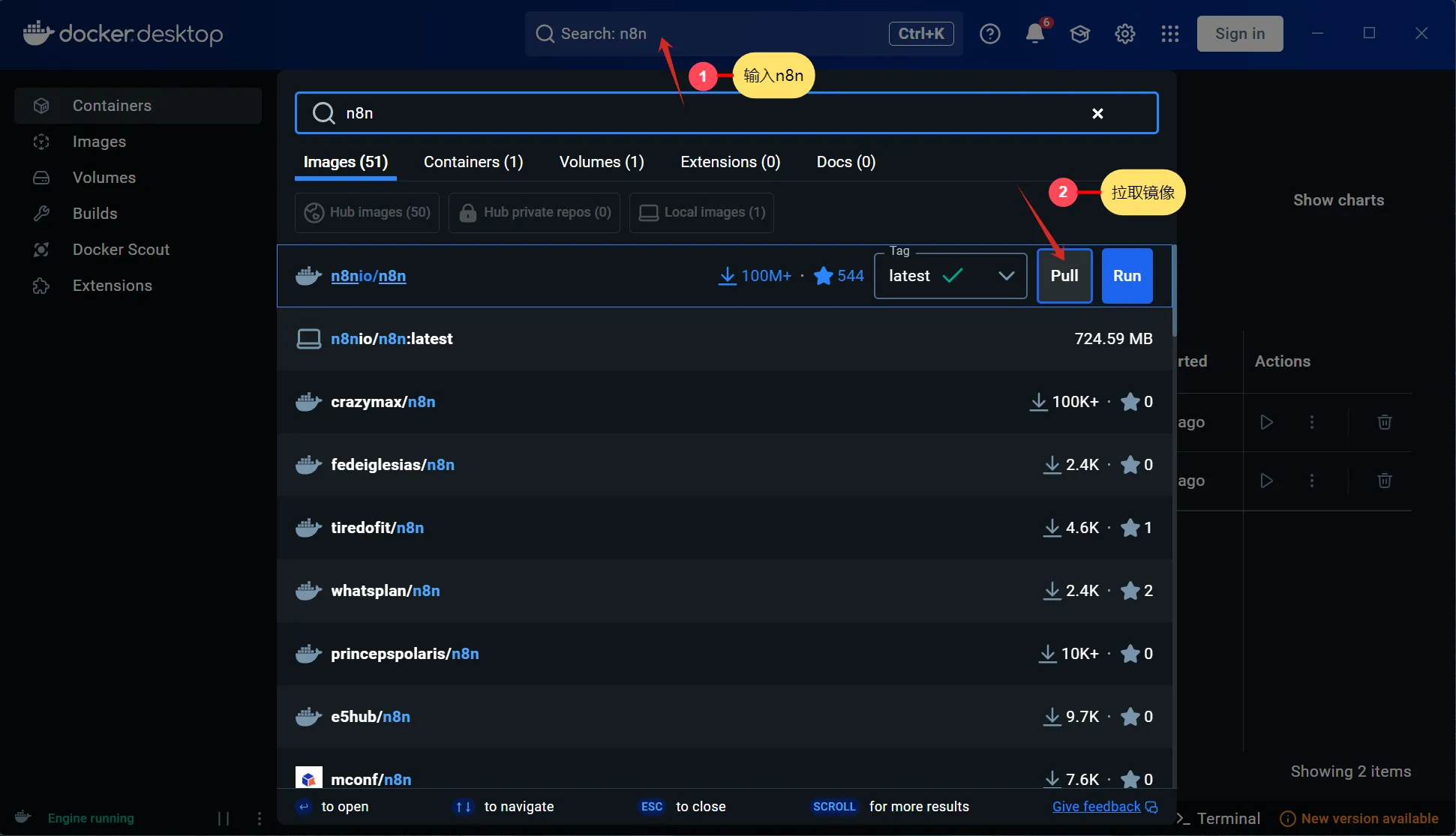
In Docker Desktop, directly search for “n8n” in the search box and click the pull button to fetch the image
3. Configure n8n Container
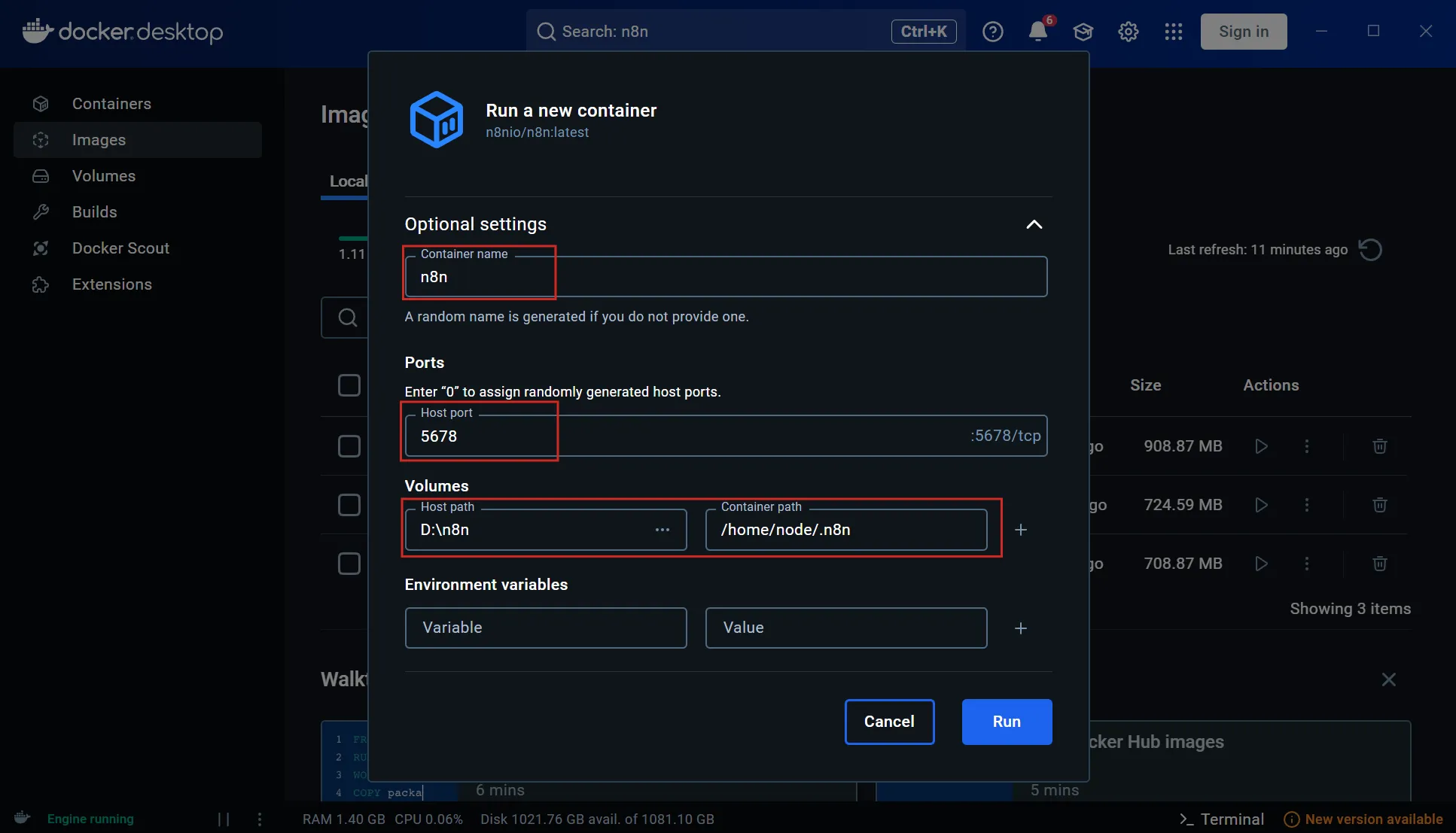
After pulling the image, the corresponding n8n image will appear in the Images section of Docker Desktop. Click the small triangle next to the image to launch it. Initial startup requires configuration of name and port; fill in according to the illustration, mainly including:
- Container name
- Container port
- Persistent storage path
- Note that it’s best to fill in the corresponding path for
Volumesas well. This step maps the directories used by n8n for storing files, data, credentials, etc., outside of Docker. Since Docker is a data-program separation deployment solution, if you don’t do this, your n8n data will be cleared during the next quick upgrade. - After configuration, click the Run button in the bottom right corner to start the container

Register and Activate n8n Account
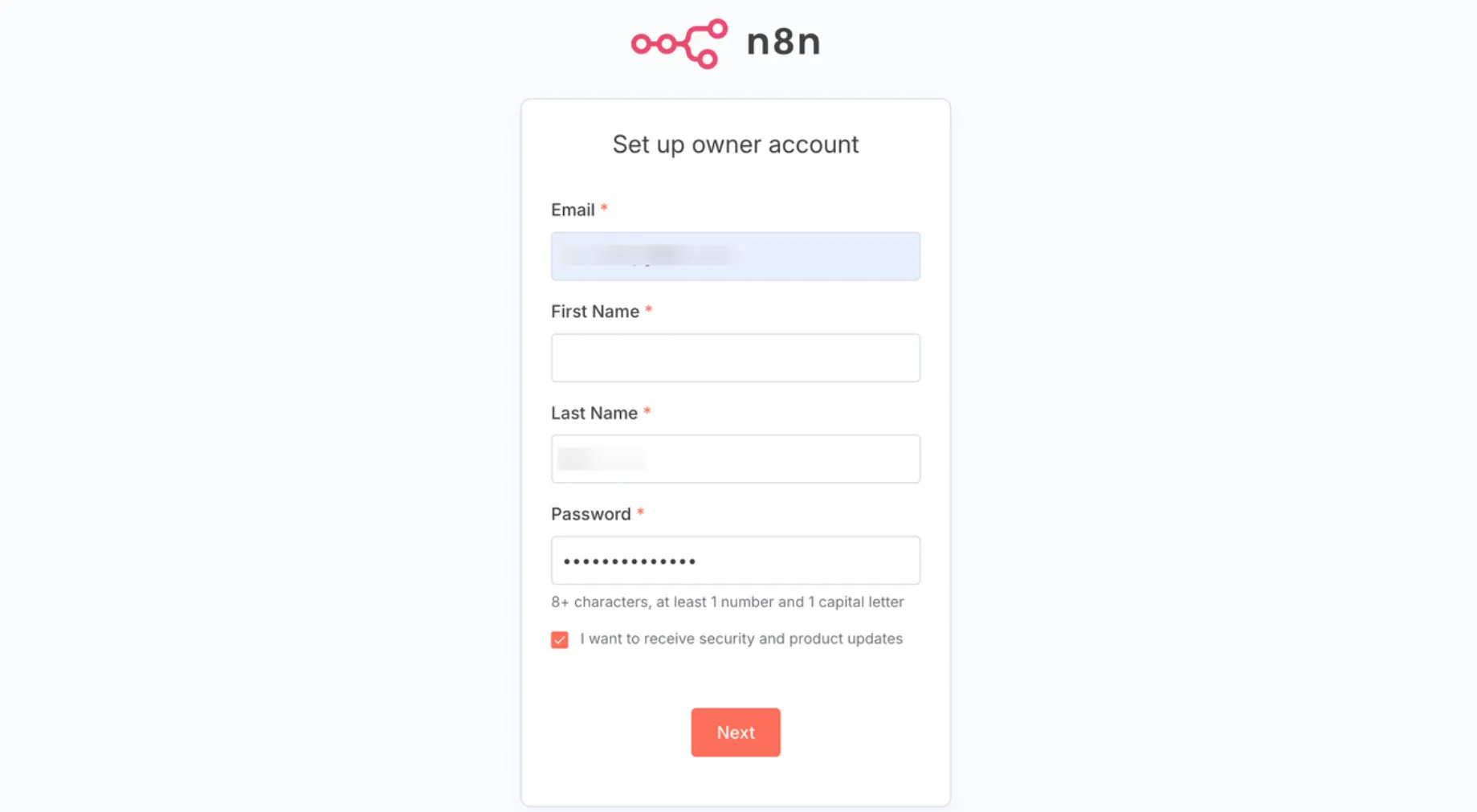
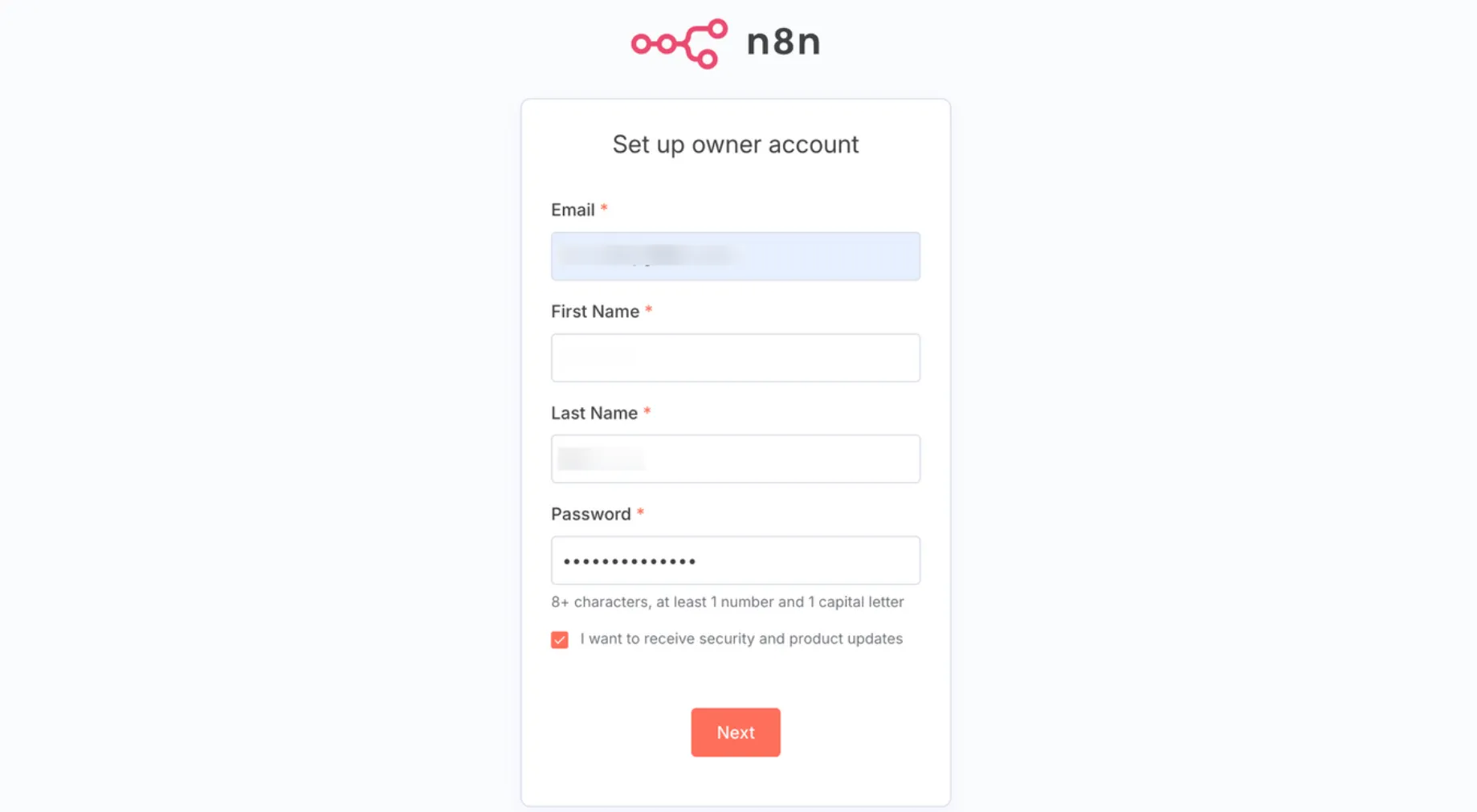
Initial startup requires account registration; simply fill in the corresponding information
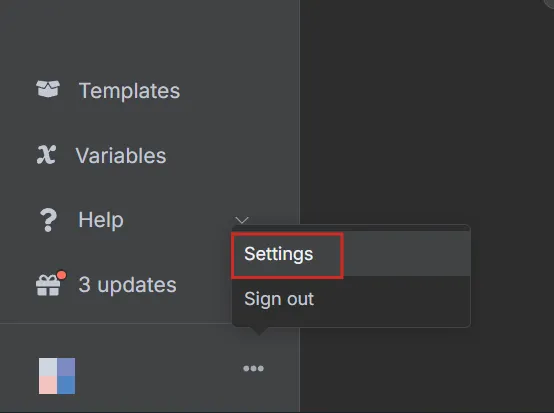
After registration, enter n8n’s main page and remember to activate your account by clicking the three small dots in the bottom left corner to access the settings page
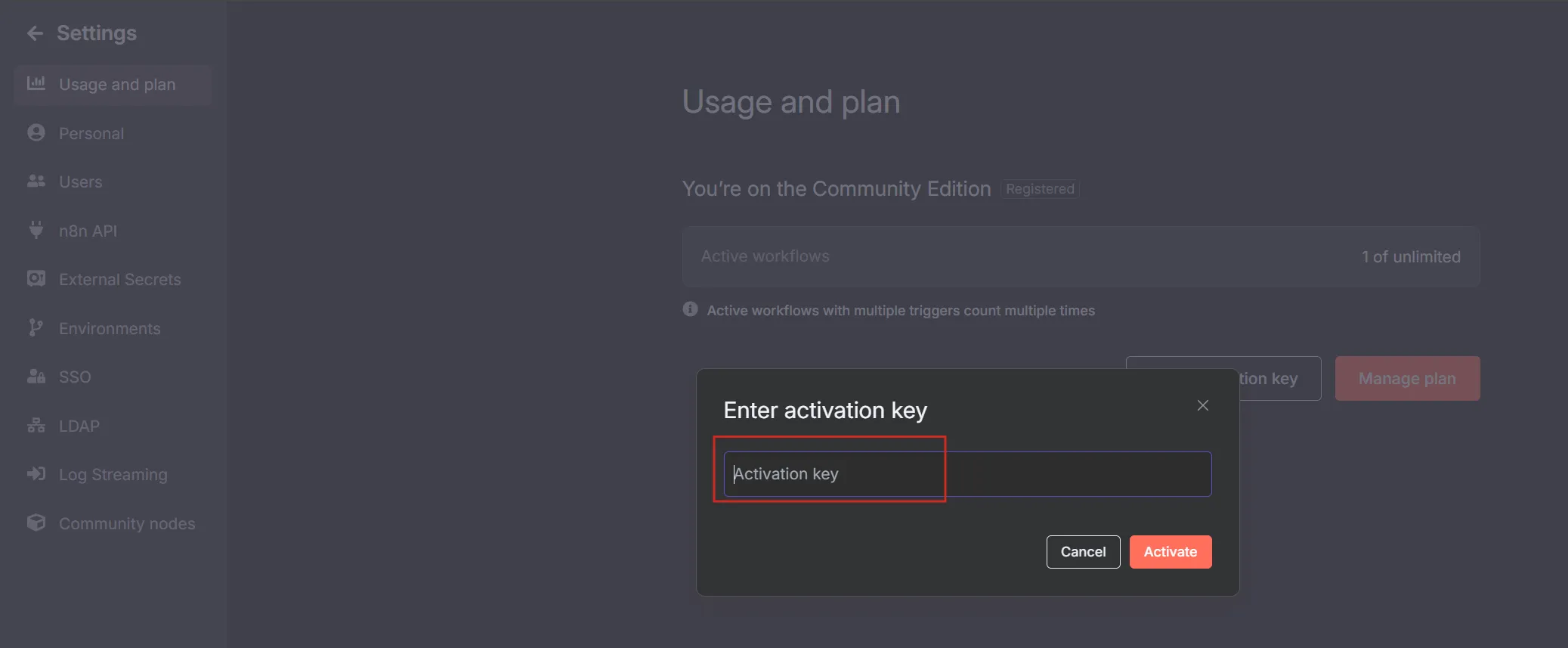
Then obtain the corresponding key via email and enter it to activate, allowing unlimited usage


Then obtain the corresponding key via email and enter it to activate, allowing unlimited usage