Local n8n Deployment with Docker Desktop: A Reproducible Guide
TL;DR: This guide runs n8n 2.25.7 on Docker Desktop, stores its state in a named Docker volume, and verifies that the data survives a container replacement. It is intended for local development and evaluation—not for exposing an n8n instance directly to the public internet.
This article assumes you can run docker version and docker compose version in PowerShell, Terminal, or a Unix shell. The commands were reviewed against n8n 2.25.7, the stable release available when this article was updated on July 13, 2026. Check the n8n releases page before choosing a newer version.
What we are building
The result is one local n8n container available at http://localhost:5678, backed by a persistent Docker volume named n8n_data.
This is enough to:
- create and test workflows locally;
- keep workflows and credentials after recreating the container;
- upgrade or roll back by changing one image tag;
- export a backup before an upgrade.
It is not a production deployment. Public webhooks, TLS, external databases, queue workers, backups, monitoring, and network hardening require additional infrastructure.
Prerequisites
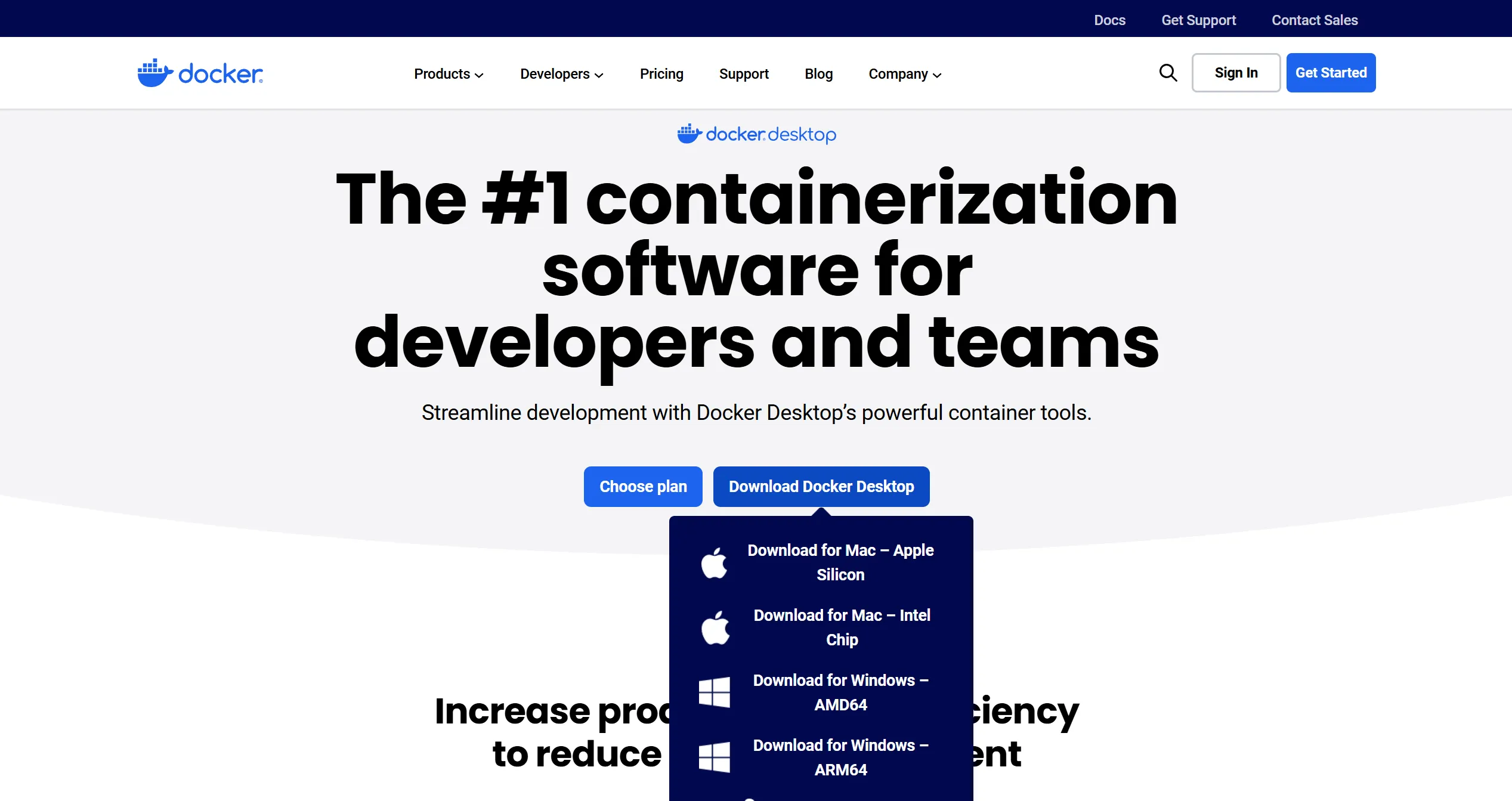
- Install Docker Desktop.
- Start Docker Desktop and wait until the engine is running.
- Verify the CLI:
docker version
docker compose version
If either command fails, fix Docker Desktop before continuing. n8n is not involved yet.
Option A: Docker Compose
Create an empty directory, enter it, and add this compose.yaml:
services:
  n8n:
    image: docker.n8n.io/n8nio/n8n:2.25.7
    container_name: n8n-local
    restart: unless-stopped
    ports:
      - "127.0.0.1:5678:5678"
    environment:
      TZ: Asia/Shanghai
      GENERIC_TIMEZONE: Asia/Shanghai
      N8N_ENFORCE_SETTINGS_FILE_PERMISSIONS: "true"
    volumes:
      - n8n_data:/home/node/.n8n

volumes:
  n8n_data:
The explicit 127.0.0.1 binding prevents the port from listening on every network interface. The named volume is mounted at /home/node/.n8n, which is n8n’s persistent data directory.
Start the service:
docker compose up -d
docker compose ps
docker compose logs --tail=50 n8n
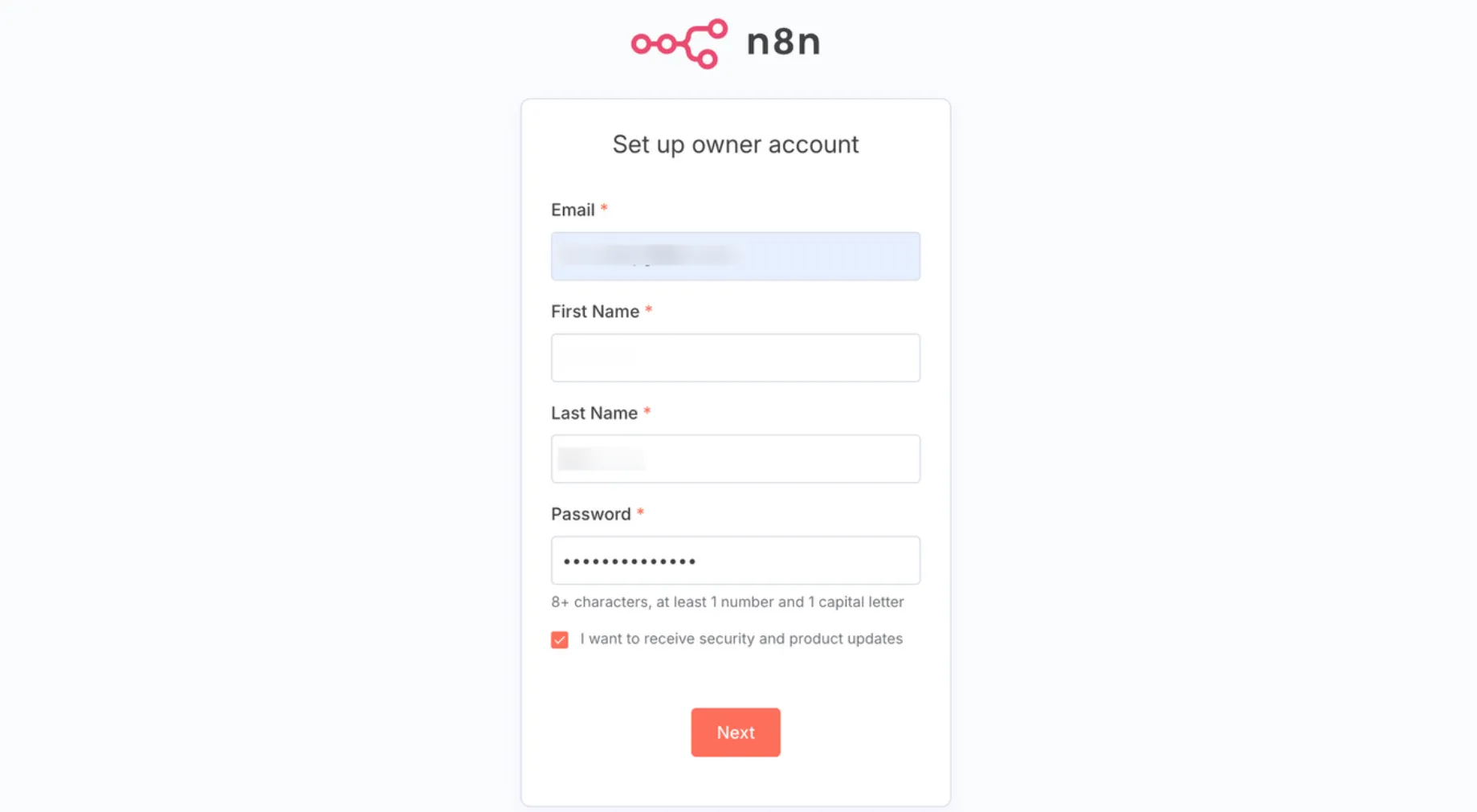
Open http://localhost:5678 and create the local owner account. The account is stored inside this instance; it is not the same thing as registering for n8n Cloud.
Option B: One Docker command
If you do not want a Compose file, the equivalent command is:
docker volume create n8n_data

docker run -d \
  --name n8n-local \
  --restart unless-stopped \
  -p 127.0.0.1:5678:5678 \
  -e TZ=Asia/Shanghai \
  -e GENERIC_TIMEZONE=Asia/Shanghai \
  -e N8N_ENFORCE_SETTINGS_FILE_PERMISSIONS=true \
  -v n8n_data:/home/node/.n8n \
  docker.n8n.io/n8nio/n8n:2.25.7
On PowerShell, either put the command on one line or replace each trailing \ with PowerShell’s backtick continuation character.
Verify persistence instead of assuming it works
- Create a workflow named
persistence-checkin the n8n editor. - Add a Manual Trigger and an Edit Fields node.
- Save the workflow.
- Replace the container:
docker compose down
docker compose up -d- Reload
http://localhost:5678.
The workflow should still exist. docker compose down does not remove named volumes. Do not add --volumes unless you deliberately want to delete the local n8n data.
Backup before upgrading
Stop n8n before taking a filesystem-level backup so SQLite and the other files are in a consistent state:
docker compose stop n8n
docker run --rm \
  -v n8n_data:/data:ro \
  -v "${PWD}:/backup" \
  alpine:3.22 \
  tar -czf /backup/n8n-data-backup.tar.gz -C /data .
docker compose start n8n
PowerShell users can replace ${PWD} with ${PWD}.Path if their Docker setup does not expand it correctly.
To upgrade, read the n8n release notes, change the image tag in compose.yaml, then run:
docker compose pull
docker compose up -d
docker compose logs --tail=100 n8n
Do not use latest for a setup you need to reproduce. A pinned tag makes rollback possible, although database migrations can still prevent a clean downgrade. Keep the backup until the upgraded instance has passed your workflow tests.
Public webhooks and production deployment
A local instance cannot receive webhooks from GitHub, Stripe, or other internet services unless you expose it through a tunnel or reverse proxy. A tunnel is convenient for temporary testing, but it also makes an application endpoint public.
Before exposing n8n, review the official Docker installation guide, configuration options, and security guidance. A production installation should normally include TLS, a stable hostname, restricted network access, tested backups, update procedures, and an external database when the workload requires it.
Limitations
- This single-container setup uses n8n’s default local persistence model and is intended for one developer.
- It does not configure PostgreSQL, Redis, queue mode, workers, or external task runners.
- The example does not expose port
5678beyond localhost. - Community nodes and arbitrary external modules increase supply-chain risk and are intentionally omitted.
- n8n uses a fair-code license; review the Sustainable Use License before embedding or reselling it as part of a commercial service.